
Updated: October 2026
Set up IPTV on the Amazon Firestick
The Firestick is the most popular IPTV device in Germany. Here's how:
- 1Allow apps from unknown sources: go to Settings > My Fire TV > Developer options and switch on "Apps from unknown sources".
- 2Install the Downloader app: search the Amazon Appstore for "Downloader" and install it.
- 3Download your IPTV player: open Downloader and enter the URL of your IPTV player (e.g. TiviMate or IPTV Smarters Pro).
- 4Log in and start: open the installed app, enter your login details and start streaming.
Set up IPTV on Android TV and smart TVs
On Android TV and most smart TVs it's even simpler:
- Open the Google Play Store on your Android TV
- Search for "IPTV Smarters" or "TiviMate"
- Install the app and open it
- Enter your login details (server URL, username, password)
- The EPG loads automatically – done!
On Samsung or LG smart TVs without Android you may need a third-party app such as "Smart IPTV" or "SS IPTV" from the TV's own app store.
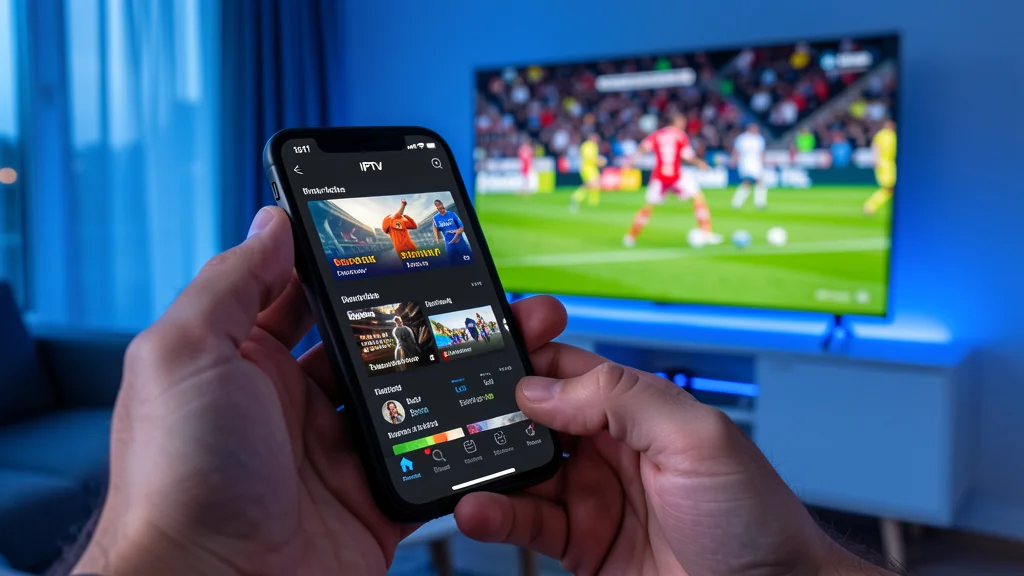
Set up IPTV on iPhone or iPad
For iOS users setup is especially easy:
- 1Open the App Store and search for "GSE Smart IPTV" or "IPTV Smarters"
- 2Download the app and open it
- 3Enter your login details
- 4The EPG loads automatically
Set up the EPG – the electronic programme guide
A complete EPG is what makes IPTV truly usable. Without it you click through an endless list of channels. Here's how to set it up:
- Most IPTV players load the EPG automatically when you enter your login details
- If not, your login details include an EPG URL
- Enter that URL in your player's settings under "EPG" or "TV Guide"
- After restarting the app the programme guide should appear
Common problems and fixes
The stream keeps buffering. Check your internet speed. 25 Mbit/s is recommended for HD and at least 50 Mbit/s for 4K. A 50 Mbit/s DSL line is usually enough.
The EPG is empty. Enter the EPG URL manually in your player's settings. You'll find the URL in your login details.
Channels won't load. Refresh the channel list in your player. In TiviMate this is "Update playlist".
No IPTV subscription yet?
Choose your plan and get your login details right away, together with setup instructions.
See plans